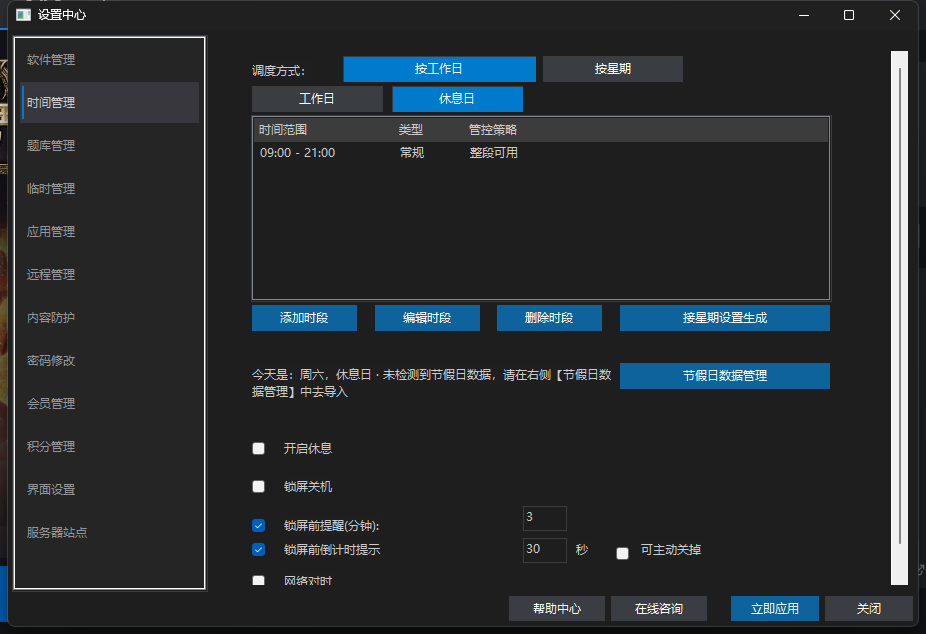
Time management decides when and how long your child may use the PC each day. Rules are configured in the Windows client under Settings → Time Management, or remotely in the web console (Dashboard → Settings → Time Management) and pushed to the device.
My child keeps playing past midnight — how do I make the PC stop on time?
Write the allowed hours as a slot: the PC locks automatically at the end time. Add a “Limited to N minutes” quota to entertainment slots and it also locks when the quota runs out. Workdays and rest days can have separate quotas, e.g. 60 minutes on school days and 240 on weekends. To build the rule you want, understand the three concepts below.
Three core concepts
| Concept | What it is | Common values |
|---|---|---|
| Schedule mode | The global dimension used to schedule the PC | Workday & rest-day (default) / By weekday |
| Time slot | A rule of day + time range + control method | 18:00–20:00, 60-minute limit |
| Day type | A slot only applies on days whose type matches | Regular / Public holiday / Make-up workday |
Does today count as a workday or a rest day?
AIVI uses one formula regardless of the schedule mode you choose:
- Rest day = Sat/Sun + public holidays (including your custom vacation) − make-up workdays
- Workday = Mon–Fri + make-up workdays − public holidays
How do I see which plan runs today?
- The client home screen shows a line such as “Schedule mode: workday & rest-day · Today: Wednesday (workday)”, so today's category is clear at a glance.
- Today's plan lists only slots matching today's day type, with the day's note (e.g. “summer vacation”) appended to the title.
- View weekly plan previews the whole week: two rows (workday / rest day) in workday & rest-day mode, or seven rows from Mon to Sun in by-weekday mode.
Configure in the client
- 01
Open Time Management
Verify the parent password on the lock screen or home screen to enter Setup mode → Time Management on the left.
- 02
Pick the schedule mode and day row
Two radio buttons at the top: workday & rest-day / by weekday. Select the day row to edit (today's row is selected by default).
- 03
Add or edit slots
Click Add slot / Edit slot and set the day type, start/end time and slot modes (limited minutes / points & quiz, combinable). To refine which software may run, click Bind apps and select app groups in the sub-window.
- 04
Save and apply
Click Apply Now in the client; in the web console you must click Save and apply to device, then wait one heartbeat (~10s).