How can I check what my child is doing on the PC while I'm at work?
Sign in to the web console to view the child's screen live (a single data-saving frame, or continuous viewing with keyboard/mouse takeover), and issue temporary lock/unlock, change rules, switch work mode or shut down remotely. The full list is below.
What the web console can do
- Live screen: single frame (data-saving) or continuous viewing, with keyboard/mouse takeover when needed; viewing consumes traffic points by volume, and frames stop uploading when points run out.
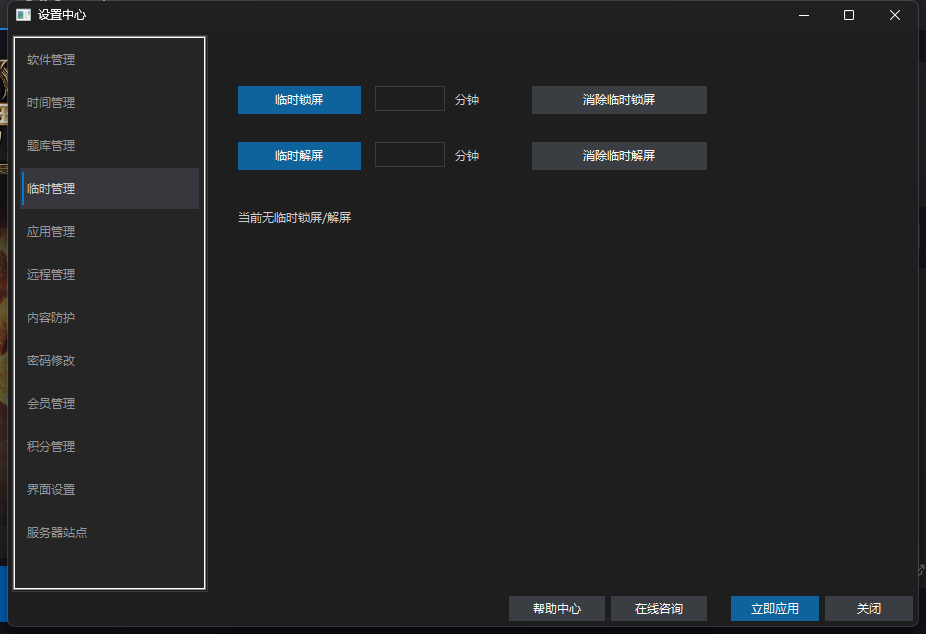
- Temporary lock / unlock: one click, effective after the next heartbeat; a temporary unlock can also be cleared remotely.
- Adjust slots and app rules: save, then push to the device.
- Switch work modes: Guardian ⇄ Setup.
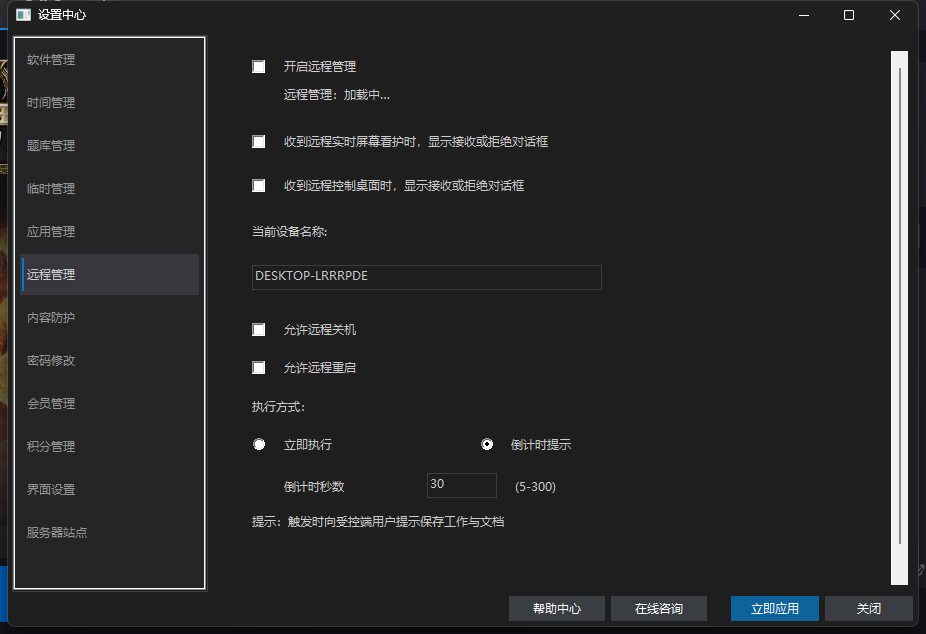
- Remote shutdown / restart: off by default and enabled on the supervised PC first; execute now or with a 5–300s countdown (default 30s).
How long until a remotely saved rule takes effect?
- 01
Click Save and apply to device
After saving, the server marks the device as pending; without saving nothing is pushed.
- 02
The client pulls on heartbeat
The client sends a heartbeat roughly every 10 seconds and pulls the policy, downloading the new config when a pending flag exists.
- 03
Applied locally
It applies immediately once downloaded — no client or PC restart needed.
Why does the device show offline when the PC is clearly on?
- A ~10s heartbeat plus a 10s-throttled control poll maintain the online timestamp.
- A unified 20-second online window: no heartbeat for 20 seconds means offline. Common causes are the client not running, no network, or system sleep.
- The device name is reported by the client heartbeat; the web console never guesses from the local hostname. A placeholder right after binding is normal — wait one heartbeat cycle.
Entitlements and switches
- The free edition stays usable long-term with no phone number required: 1 device plus a 7-day remote-care trial. Device counts and prices for VIP / SVIP are as shown on the official pricing page.
- After expiry, remote care, settings, temporary management and mode switching are disabled in the web console — on-device time rules keep running.
- Remote management can only be turned ON from the supervised PC; the web console can only turn it off — so the child cannot disable care.