How do I block games and inappropriate sites? App groups and website blocking
Time management decides when the PC can be used; app management decides what can be used. Combine them via Bind apps in a slot to get “study only during this slot”. The top of the App Management page holds global switches; per-slot bindings refine them. Both layers apply together.
How do I stop my child from playing PC games?
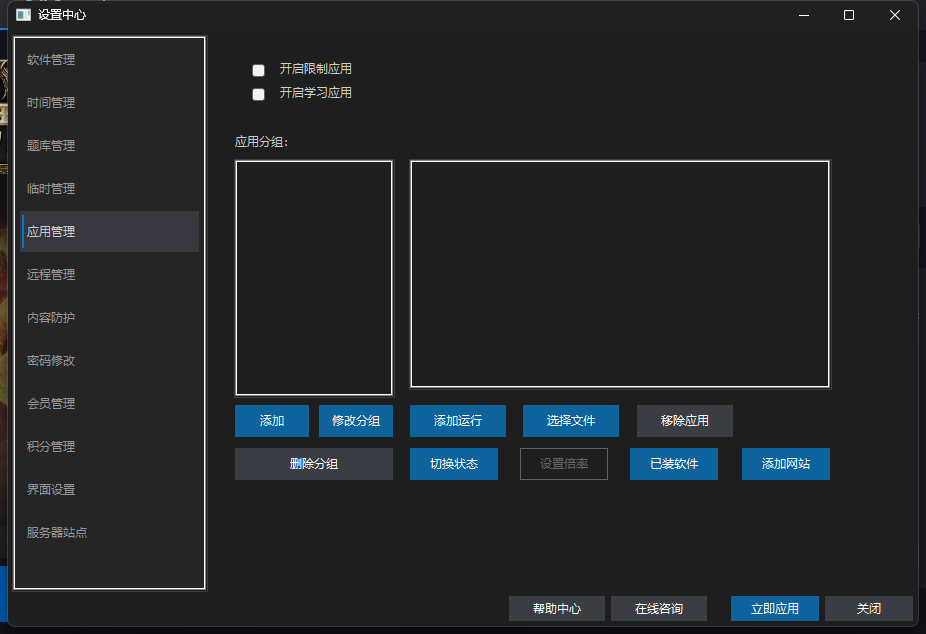
Add the game clients to the Restricted apps group and enable the Restrict apps switch — they are closed automatically when a limit hits or exclusive mode triggers. Bind app groups to a slot to also get “no games during this slot”. Groups and switches below.
Global app control: three switches
| Switch | Purpose | Notes |
|---|---|---|
| Enable restricted apps | Control restricted software all day or per slot | Off = the restricted group has no effect; only per-slot rules apply |
| Enable study apps | Study group applies and can earn points by multiplier | Works together with exclusive mode and points rewards |
| Exclusive mode (study apps only) | Globally allow only study apps and the system allowlist | Strictest — for homework slots; can also be limited to a single slot |
Two group types
| Group | Purpose | Typical members |
|---|---|---|
| Restricted apps | Controlled software, closed when a limit hits or exclusive mode triggers | Games, short-video clients, chat tools |
| Study apps | Allowed under exclusive mode and eligible for points multipliers | Online classes, dictionaries, IDEs, homework apps |
Four ways to add
- Add running: pick from processes currently running — the quickest.
- Pick file: choose an .exe directly, good for portable apps.
- Installed list: choose from installed programs when the .exe is hard to find.
- Add website: enter a domain or keyword (e.g. leetcode.cn) with a friendly name.
How do I block inappropriate websites for my child?
Click Add website in App Management and enter the domain or keyword; matching browser tabs are closed automatically with a notice. For smarter detection that reads page content rather than keywords only, pair it with Content protection. Where blocking applies and its limits are below.
How website blocking works
- Only browser processes: it matches keywords in the current window title, then sends Ctrl+W to close that tab and shows a notice.
- Under Study Exclusive mode, any site not on the study allowlist is closed; new/blank tabs are allowed.
- Each rule can be toggled on/off individually to temporarily allow a site.
Global switches vs per-slot bindings — which wins?
They stack rather than conflict: global switches set the baseline, per-slot bindings refine it. For example, enable restricted apps globally (games controlled all day), then bind the study group to the homework slot with exclusive mode on — only study apps run then, while other slots follow the global rules.